> ## Documentation Index
> Fetch the complete documentation index at: https://docs.frayme.io/llms.txt
> Use this file to discover all available pages before exploring further.
# Request information from a customer
> Ask the customer for a document or an explanation from the Decision Console, then record the reply as evidence on the case.
When the evidence on a case is incomplete, an analyst asks the customer for what is missing without leaving the case: a proof of address, the source of funds, a clearer document. Frayme writes the email from your templates and your systems deliver it. The case waits as *awaiting information* until the reply arrives, and the reply is recorded on the case as evidence the analyst decides with.## Before you startFrayme never sends email itself. Your systems need an endpoint that receives the signed `case.rfi_requested` webhook and sends the message; see [RFI requested](/api-reference/webhooks.md#rfi-requested) for the payload.## 1 · Set it upA manager does this once, in **Settings** → **Communication**.**a) Choose the communication webhook.** Under **Communication Webhook**, pick the **Webhook endpoint** that receives information requests: **Default** or one of your named endpoints. Endpoints are created in the **API** tab. The choice saves as soon as you pick it.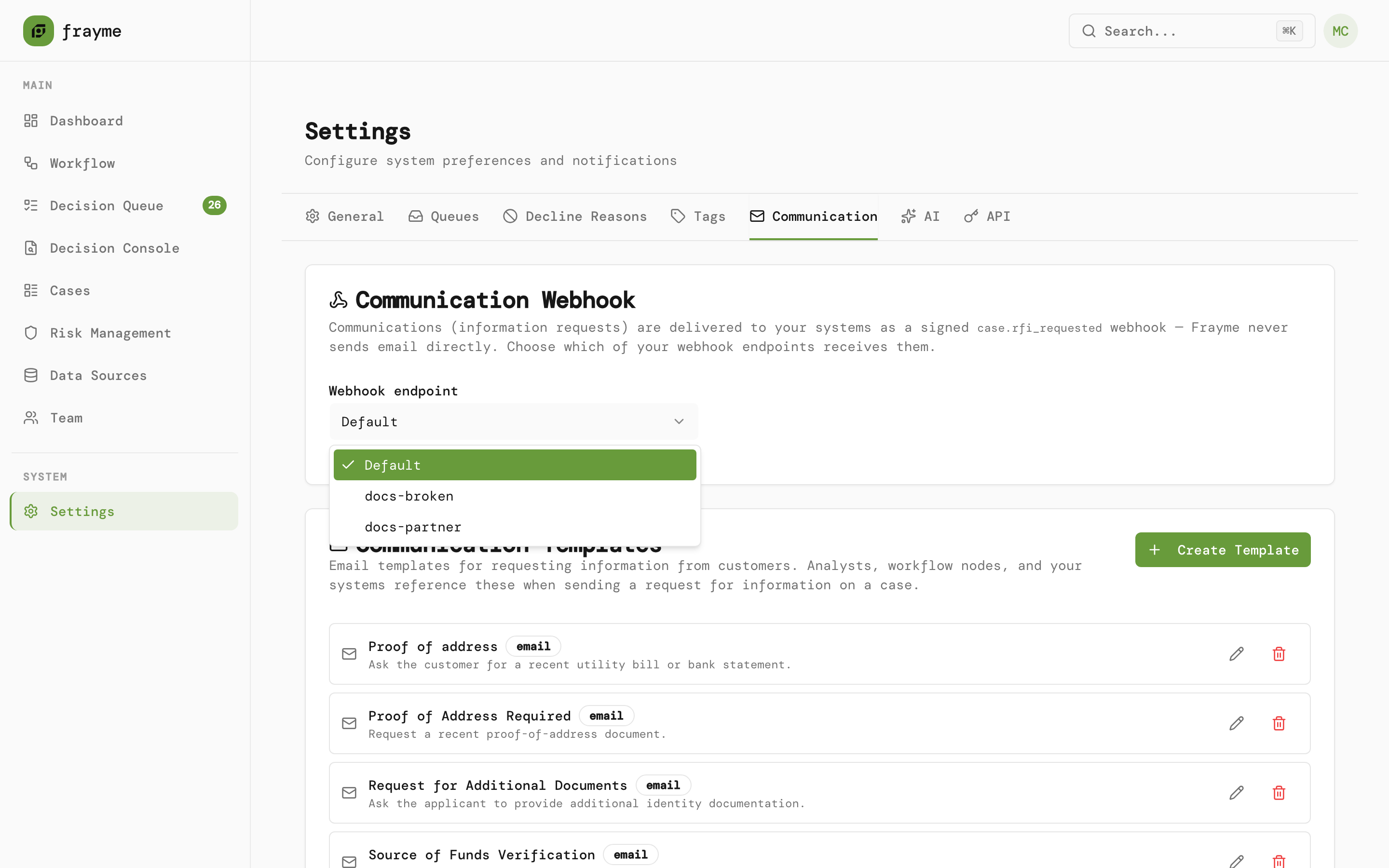The endpoint that receives case.rfi\_requested.**b) Create the templates.** Under **Communication Templates**, click **Create Template** and give it a **Name**, an optional **Description** that says when to use it, a **Subject** and a **Body**. Type `${` in the subject or body to insert a case value, such as `${customer.name}`, `${caseId}` or `${subject.transaction.amount}`. Only the variables the dialog lists are filled in; anything else is left empty when the request is sent.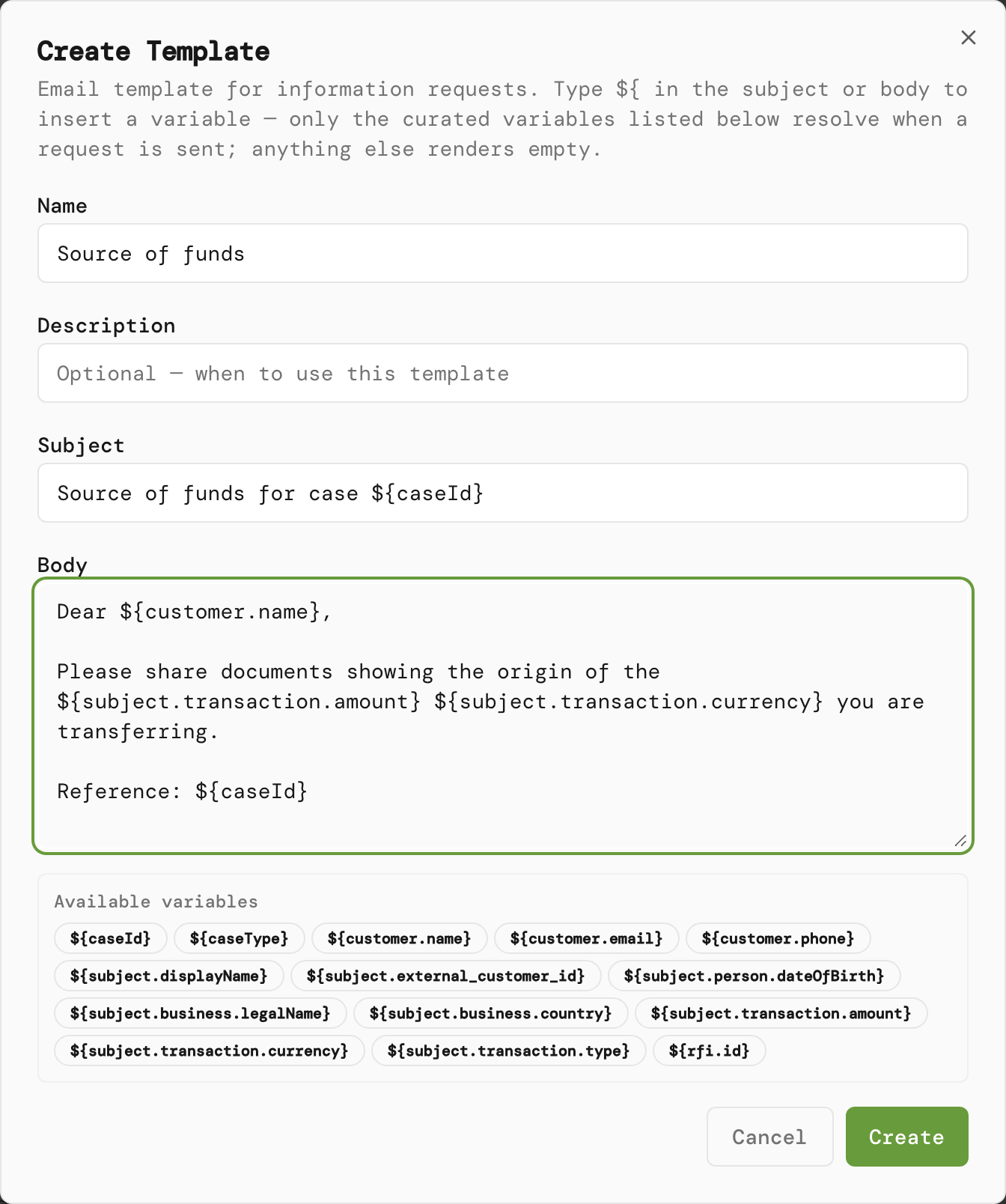A template for proof of the source of funds.Create one template per request you send often, for example proof of address, source of funds, or additional identity documents.## 2 · Send a requestAn analyst does this from the Decision Console.**a) Claim the case and open the request.** **Request Information** is the third button in the **Decision** card, under **Decline**. It is active once you hold the claim.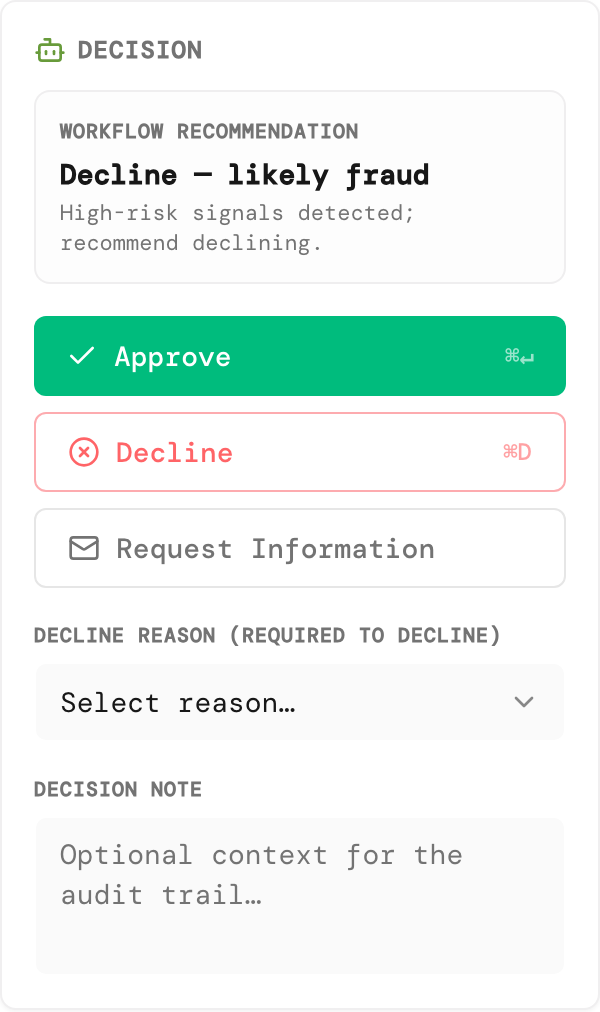Request Information, under Decline.**b) Write the request.** In **Request Information**:- **To** is filled from the case and cannot be edited. The badge beside it says where the address came from: **verified identifier**, **AI-extracted** or **caller-supplied**. When the case has no email, the dialog says **No customer email on file** and the request cannot be sent.
- **CC** takes up to ten addresses, separated by commas, and suggests the ones you used recently.
- **Template** fills **Subject** and **Body** with this case's values. Edit both as you need. Variables that could not be filled are listed below the body.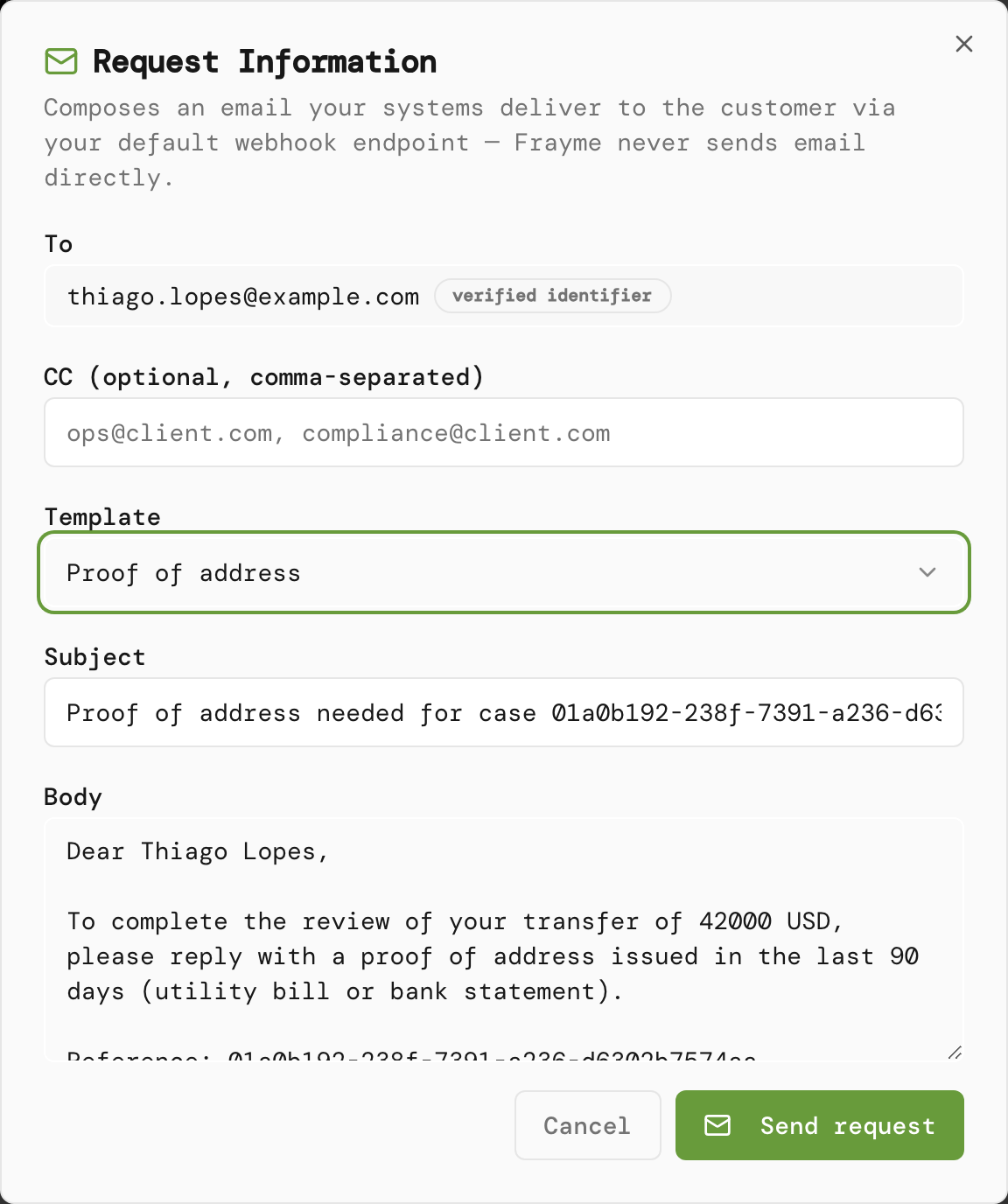Subject and body filled from the template.**c) Send it.** Click **Send request**. The **Decision** card shows **Awaiting customer information** with the masked address, the timeline records **Information requested**, and the case's row in the Decision Queue gets an **Awaiting info** chip. **Hide awaiting info** on the queue hides these cases while you work on the rest.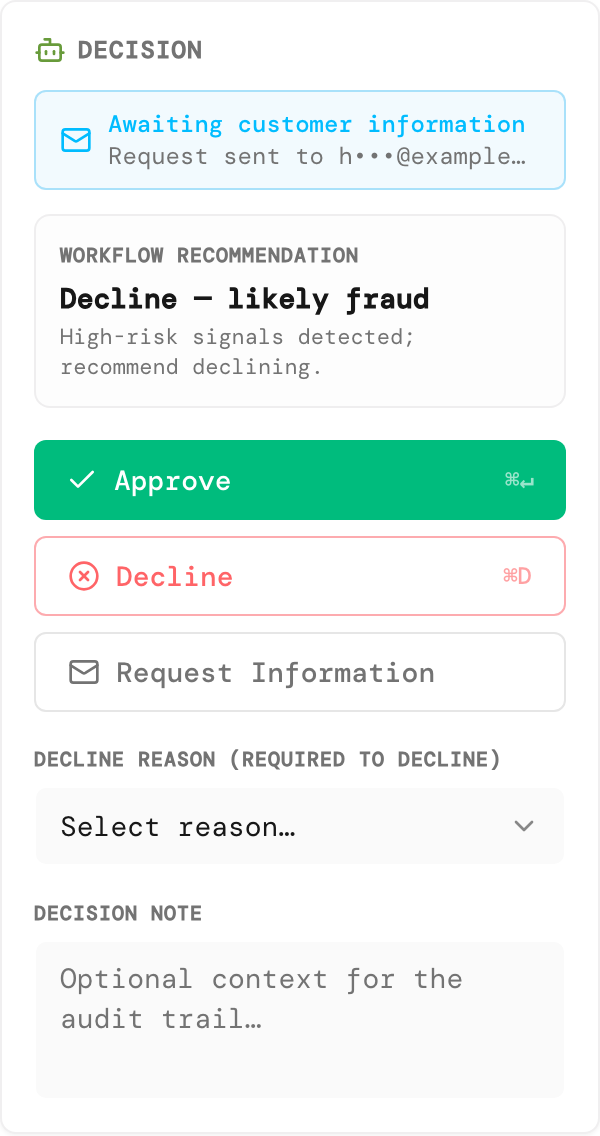The case waits for the customer.## 3 · When the answer comes back**a) Through your systems.** If your systems collect the reply, they send it to Frayme with [`POST /cases/{caseId}/rfi/{rfiId}/response`](/integration/guide#answering-an-information-request). The **Decision** card changes to **Information request answered**, and each answer appears under **Evidence**, marked **RFI**. Your endpoint receives a [`case.rfi_answered`](/api-reference/webhooks#rfi-answered) webhook.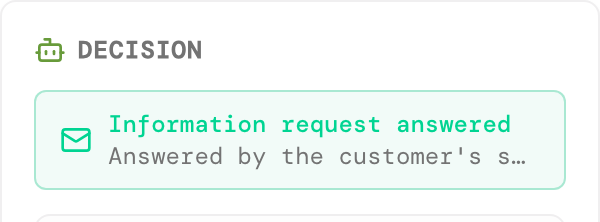Answered by the customer's systems.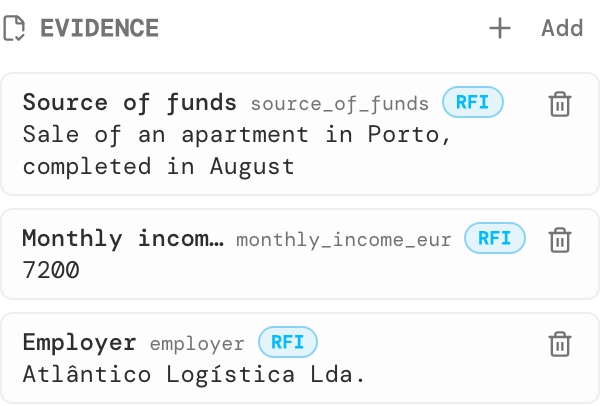Each answer is evidence on the case.**b) Outside Frayme.** If the customer replied to your team directly, the analyst records the reply on the case.1) **Open Evidence.** It sits in the decision column, below the **Audit checklist** and **This party's other cases**, above **Notes**. Click **+ Add**.
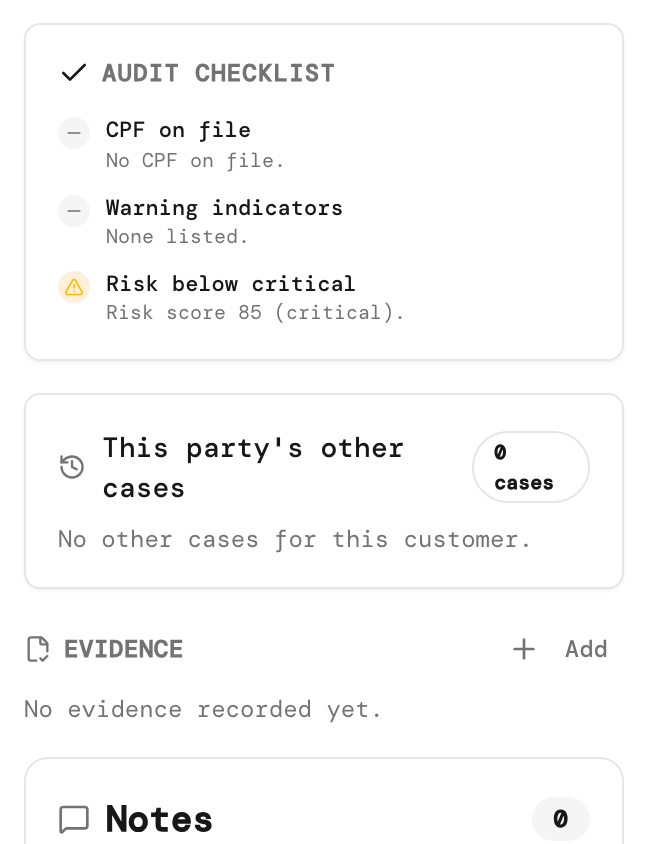
Where Evidence sits.
2) **Fill in the dialog.** In **Add evidence**:
* Under **Fields**, give each item an **Evidence name**, such as *Proof of address*, and its **Answer**. Click **+ Add field** for more. Workflow rules read each answer by a key made from its name: lowercase, without accents, other characters replaced by `_`.
* Under **Documents**, click **Choose files** to attach PDF, JPEG or PNG files, up to 20 MB each and ten per submission, each with an optional label.
* Tick **This answers the open information request**. It closes the request for good; a follow-up needs a new request. Leave it unticked to record something the customer sent without closing the request.
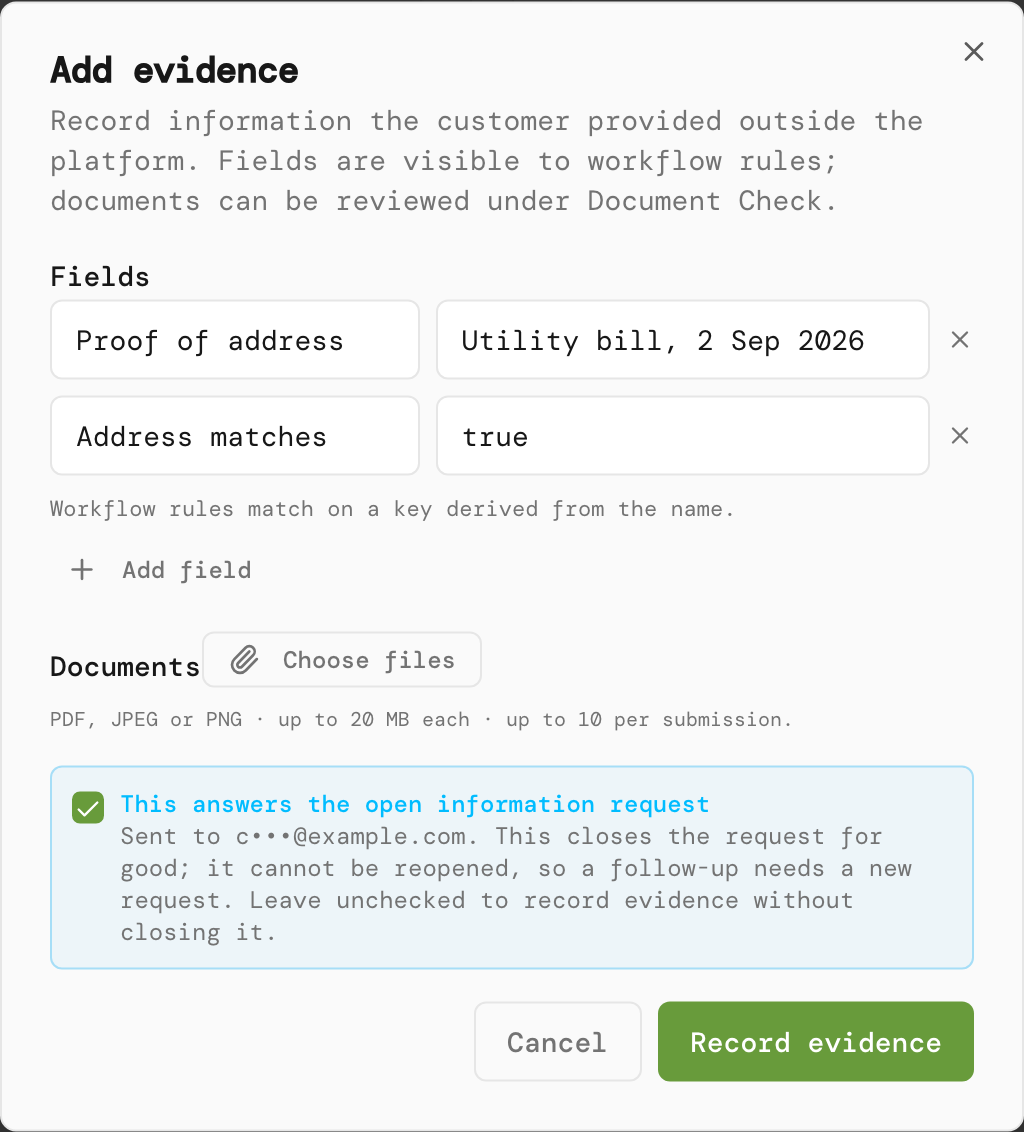
Name each item, give the answer, and tick that it answers the request.
> [!WARNING]
>
> * Frayme does not open or scan attached files. They reach other analysts and can be read by an AI node in the workflow, so scan files you received from a customer before you attach them.
> * When a **Send RFI** node is waiting on the request, **This answers the open information request** resumes the workflow down **Answered** with the values you typed, and the rules after it act on them. No claim is needed, and Frayme records only which analyst did it. Grant `evidence:write` to people you trust to answer for the customer, and route **Answered** to a **Review** node rather than straight to **Approve**.
3) **Click Record evidence.** The answers appear under **Evidence**, marked **Analyst**, and attached documents appear in **Document Check**, marked **Provided by: Analyst**. If you ticked the box, the **Decision** card changes to **Information request answered**, recorded by an analyst; otherwise the request stays open.
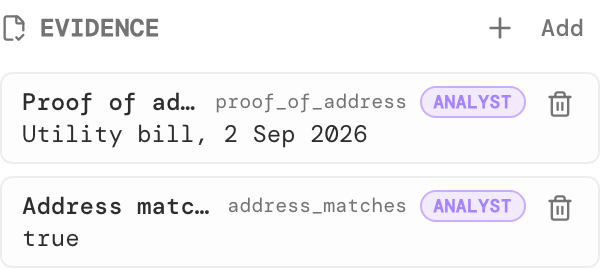
Recorded by an analyst.**c) Decide.** With the reply in view, approve or decline the case as usual. See [Approve, decline or run a workflow action](/guides/analyst/console-decide.md).## Automate itA workflow can send the request itself with the **Send RFI** node, from the **Integration** group of the palette. Pick a **Template**, turn on **Wait for the response**, and set a **Response deadline (days)**.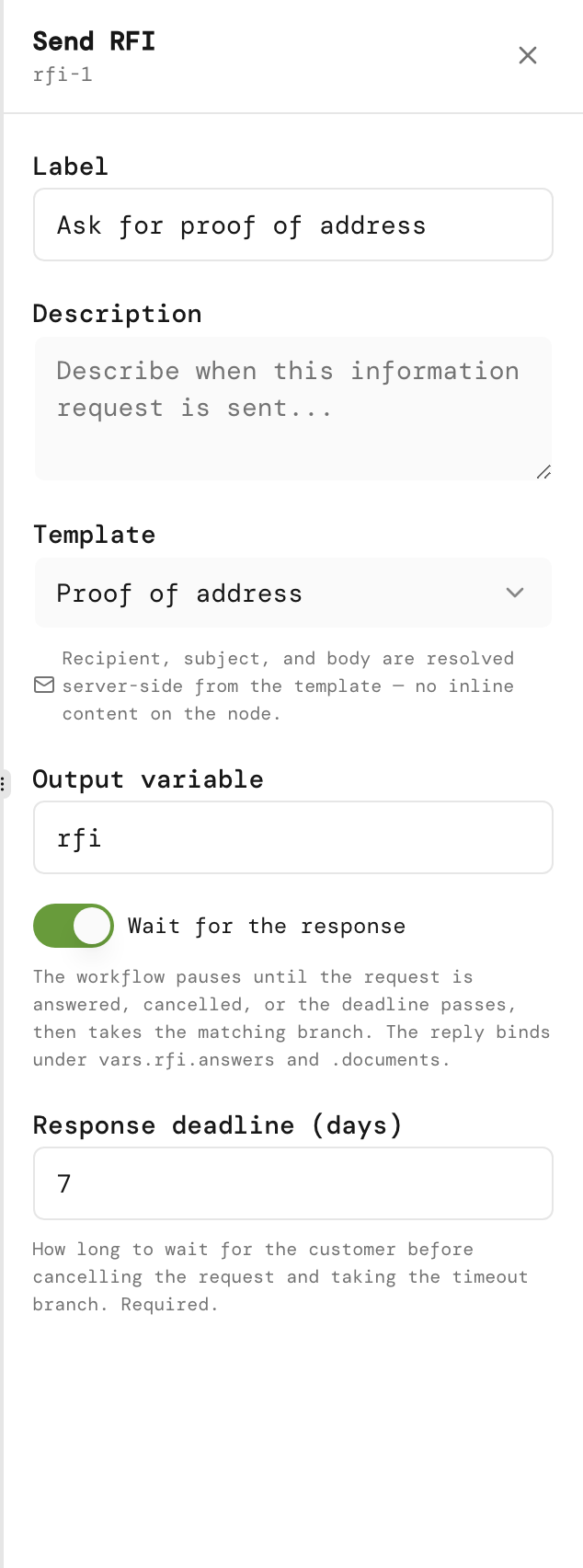Wait for the response, with a deadline.The waiting node then branches on **Answered**, **Timeout** or **Cancelled**, and the rules after it read the answers as `vars.rfi.answers.`, where `rfi` is the node's **Output variable**. When each branch fires, and the deadline's limits, are in the [Send RFI reference](/workflows/nodes/send-rfi.md).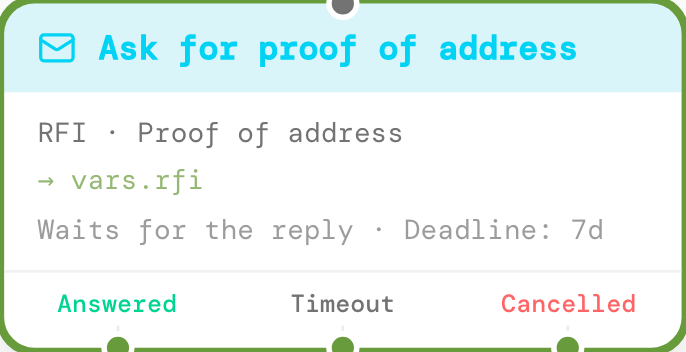Answered, Timeout and Cancelled.## Limits- A case has at most one open request. Reopening **Request Information** shows **A request has already been sent**; **Cancel request** closes it so you can send another. Cancelling sends a waiting workflow down **Cancelled**.
- A request is answered once. There is no amending an answer or reopening a request.
- When the case is decided, an open request is cancelled without a webhook of its own; your systems receive `case.decided`.
- Evidence reaches workflow rules only when it answers a request a **Send RFI** node is waiting on.
- Removing evidence asks for one of five reasons and is allowed on decided cases too. It hides the item and records **Evidence removed** on the timeline, but it does not revoke access: a removed document stays retrievable by anyone in your tenant with `cases:read`. Removing evidence never changes the decision.## Related- [Communication settings](/guides/admin/communication.md)
- [Answering an information request through the API](/integration/guide.md#answering-an-information-request)
- Webhooks: [`case.rfi_requested`](/api-reference/webhooks#rfi-requested) and [`case.rfi_answered`](/api-reference/webhooks#rfi-answered)
- [Send RFI node](/workflows/nodes/send-rfi.md)
This documentation is built and hosted on [Mintlify](https://mintlify.com), a developer documentation platform.