Before you start
Frayme never sends email itself. Your systems need an endpoint that receives the signedcase.rfi_requested webhook and sends the message; see RFI requested for the payload.
1 · Set it up
A manager does this once, in Settings → Communication. a) Choose the communication webhook. Under Communication Webhook, pick the Webhook endpoint that receives information requests: Default or one of your named endpoints. Endpoints are created in the API tab. The choice saves as soon as you pick it.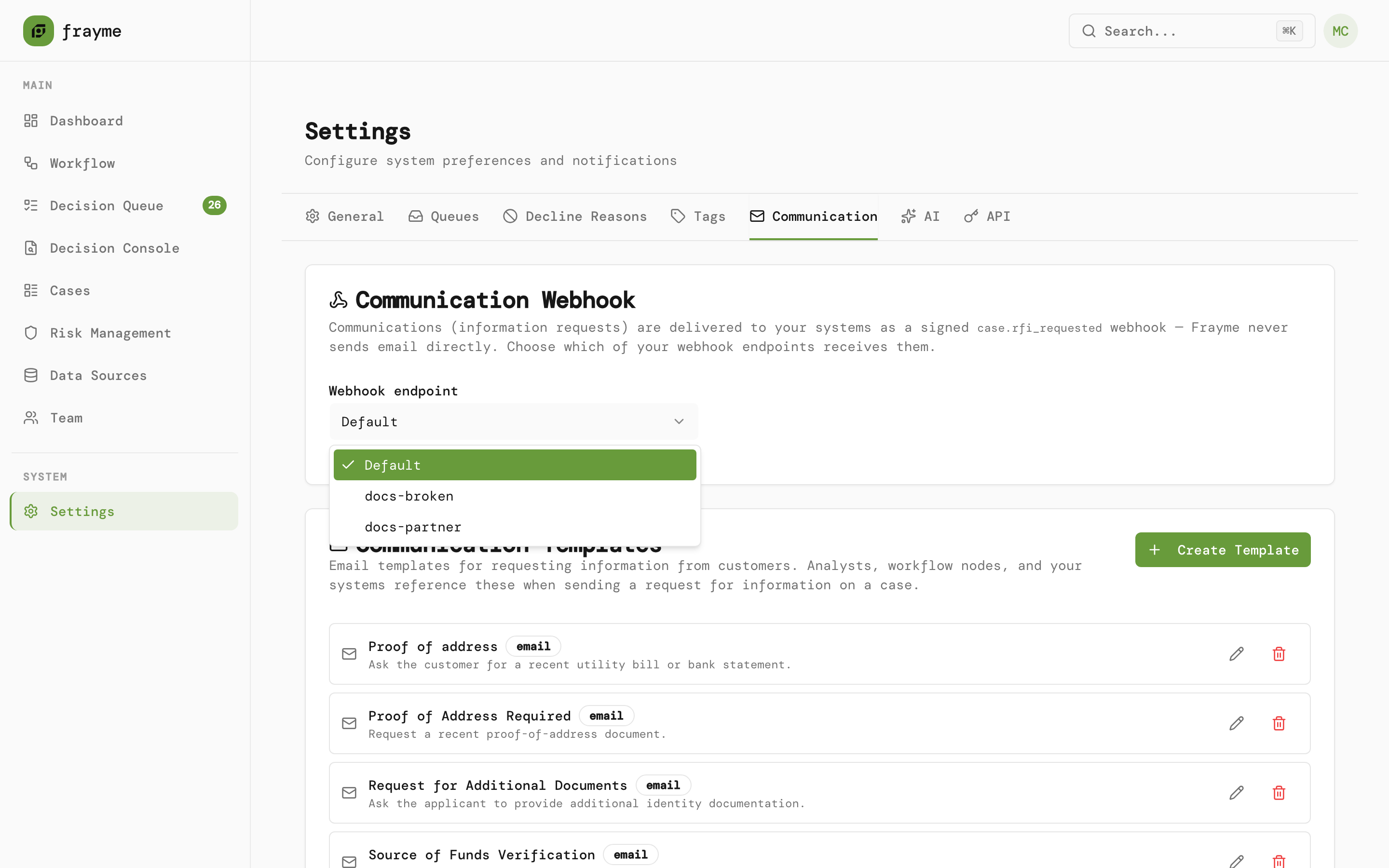
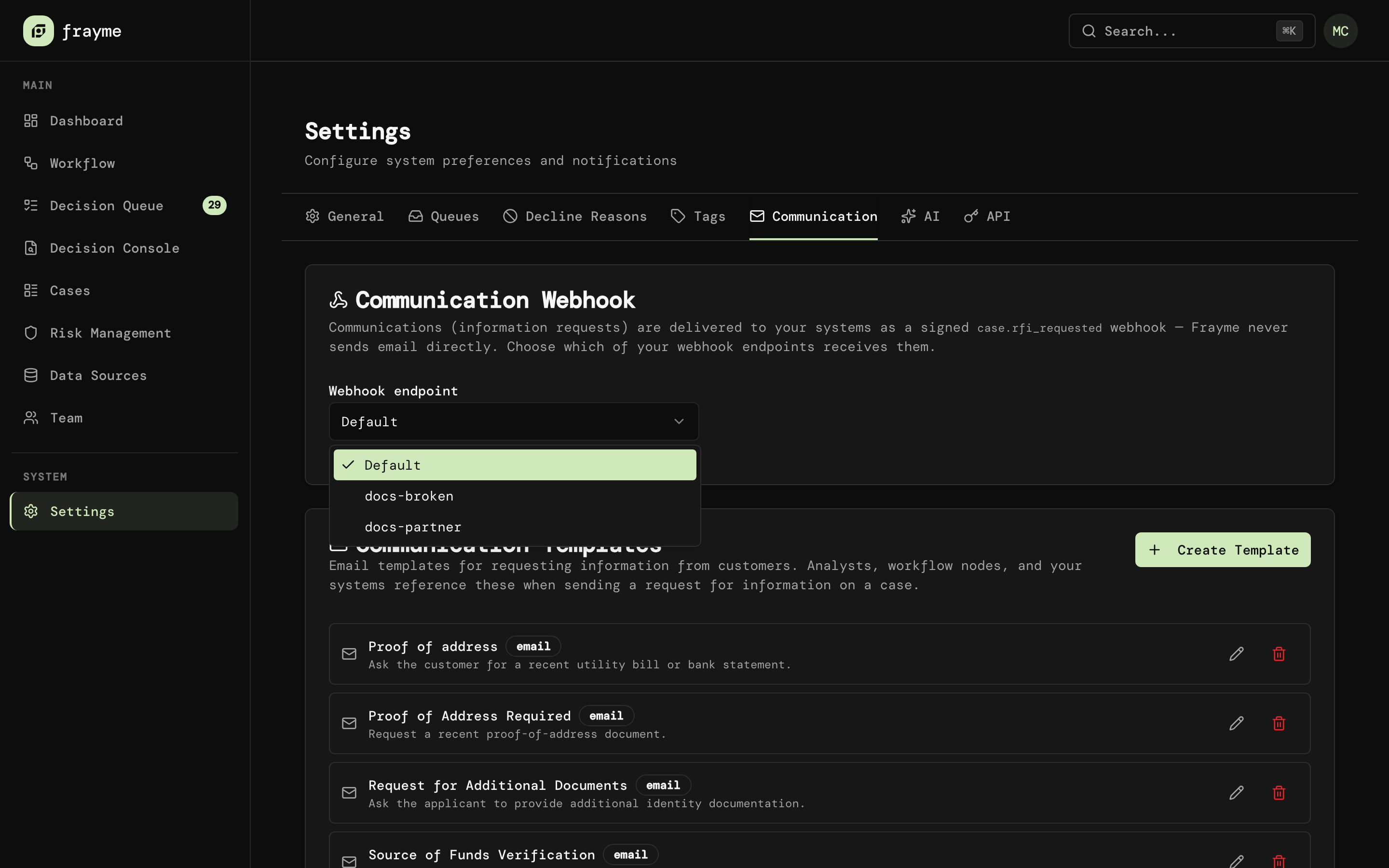
The endpoint that receives case.rfi_requested.
${ in the subject or body to insert a case value, such as ${customer.name}, ${caseId} or ${subject.transaction.amount}. Only the variables the dialog lists are filled in; anything else is left empty when the request is sent.
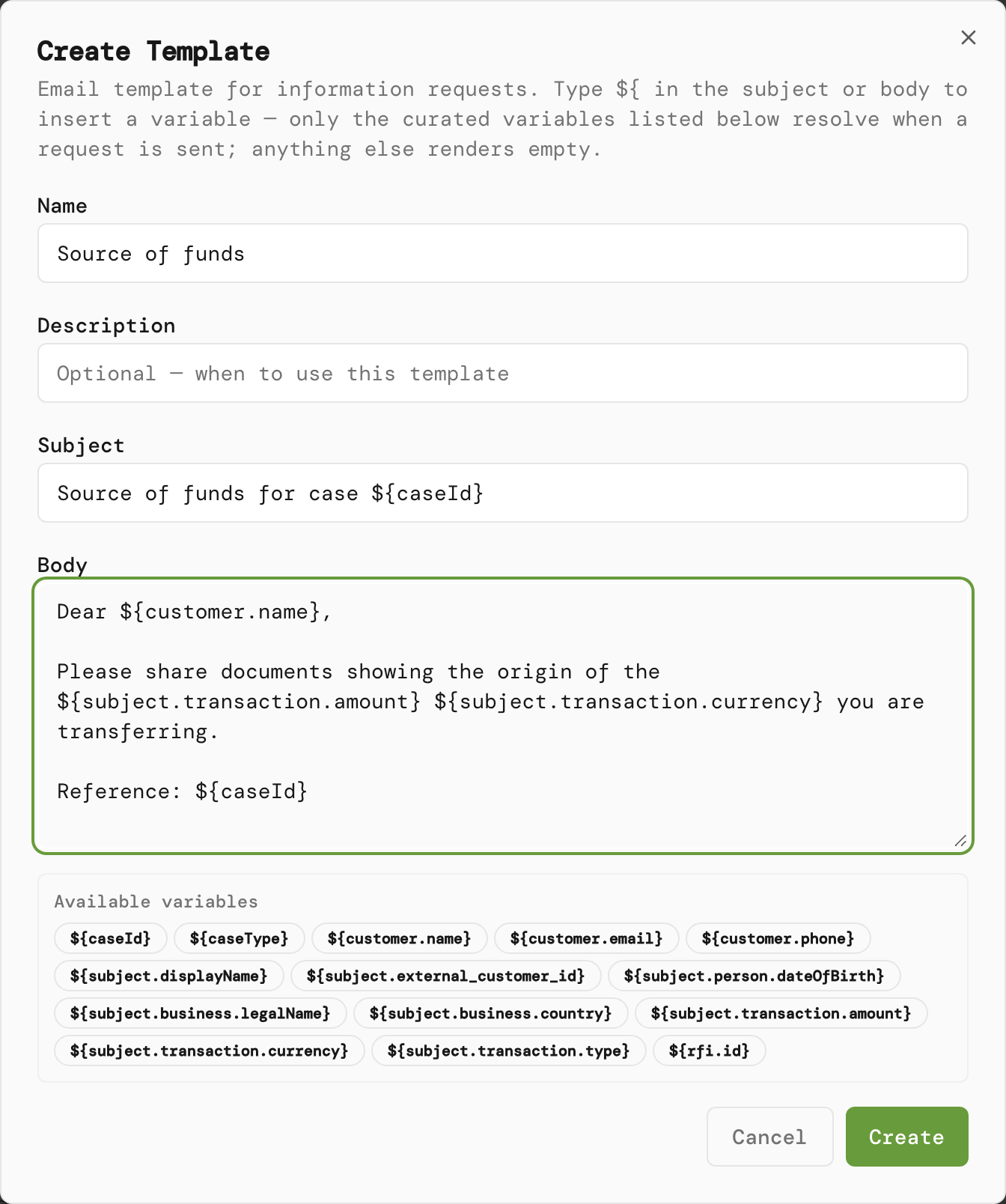
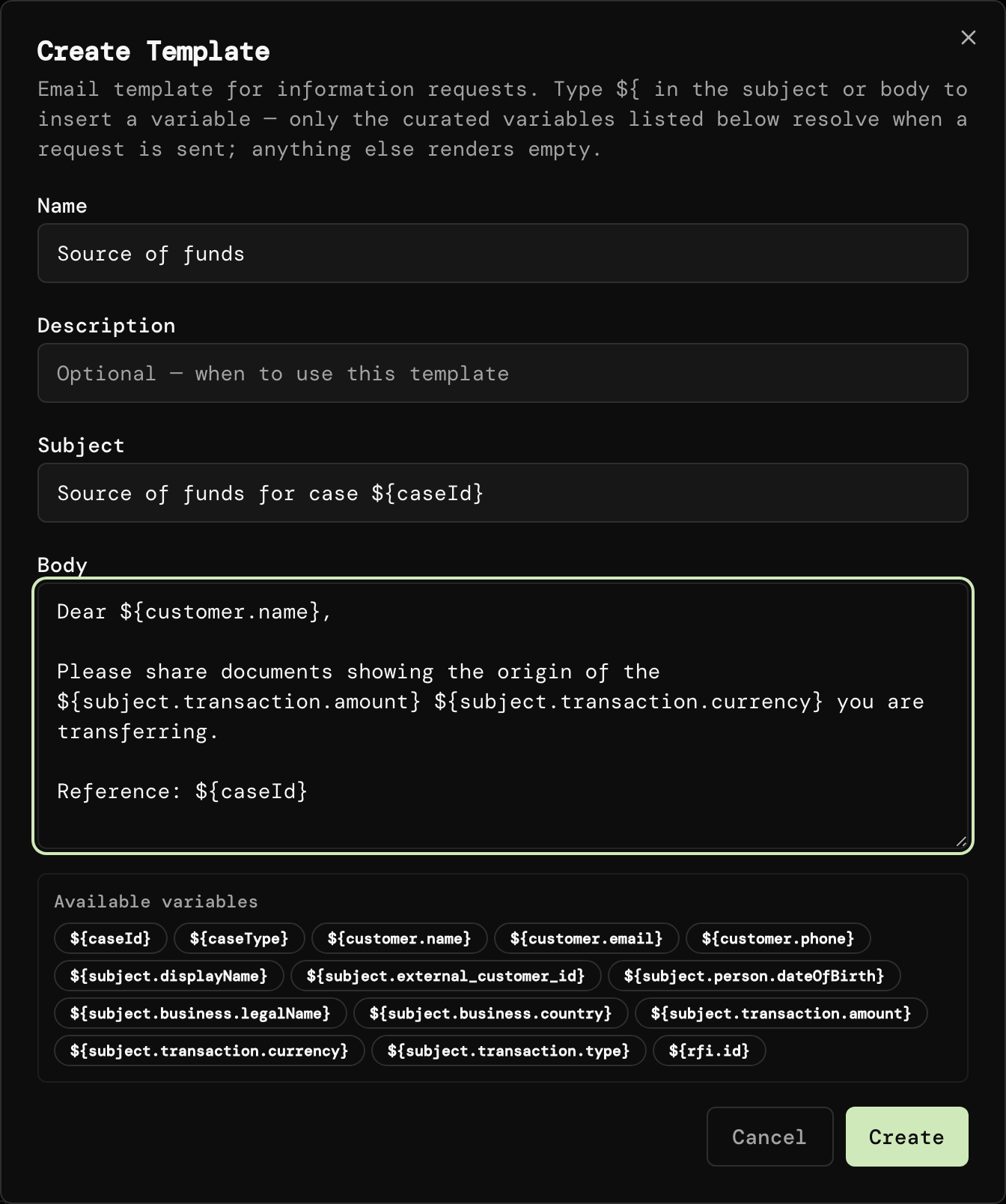
A template for proof of the source of funds.
2 · Send a request
An analyst does this from the Decision Console. a) Claim the case and open the request. Request Information is the third button in the Decision card, under Decline. It is active once you hold the claim.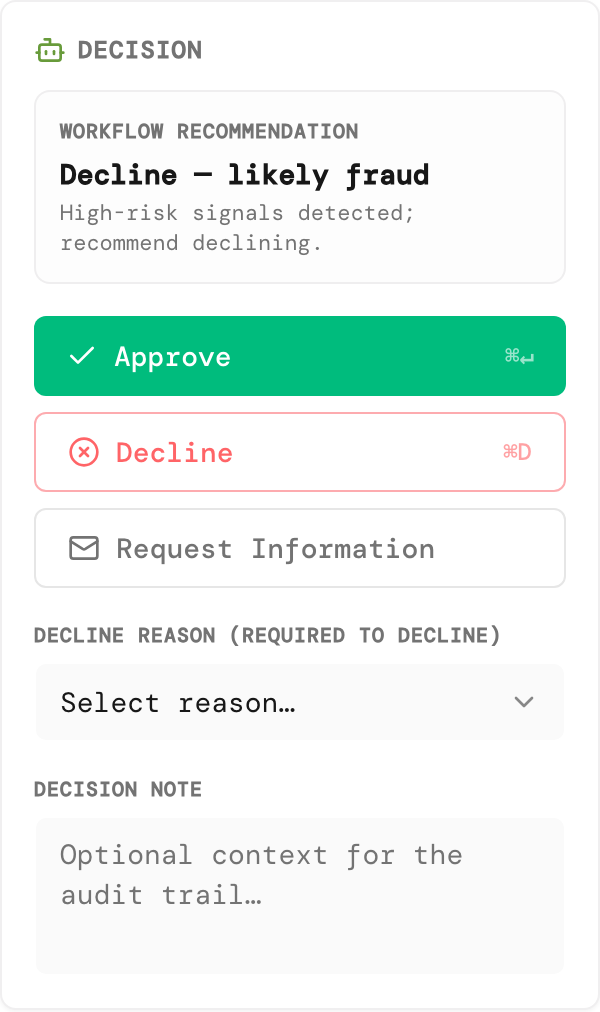
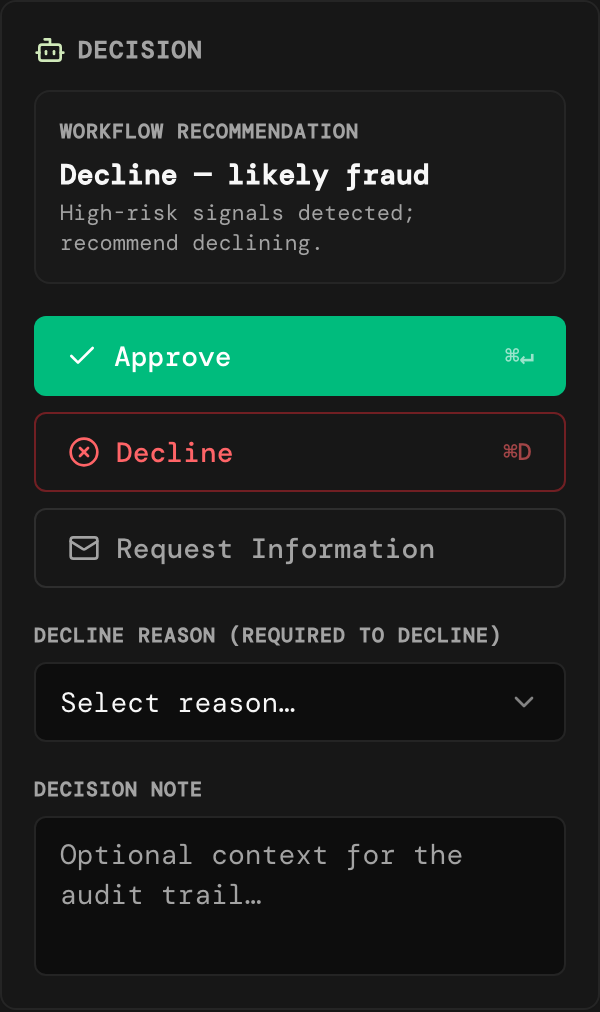
Request Information, under Decline.
- To is filled from the case and cannot be edited. The badge beside it says where the address came from: verified identifier, AI-extracted or caller-supplied. When the case has no email, the dialog says No customer email on file and the request cannot be sent.
- CC takes up to ten addresses, separated by commas, and suggests the ones you used recently.
- Template fills Subject and Body with this case’s values. Edit both as you need. Variables that could not be filled are listed below the body.
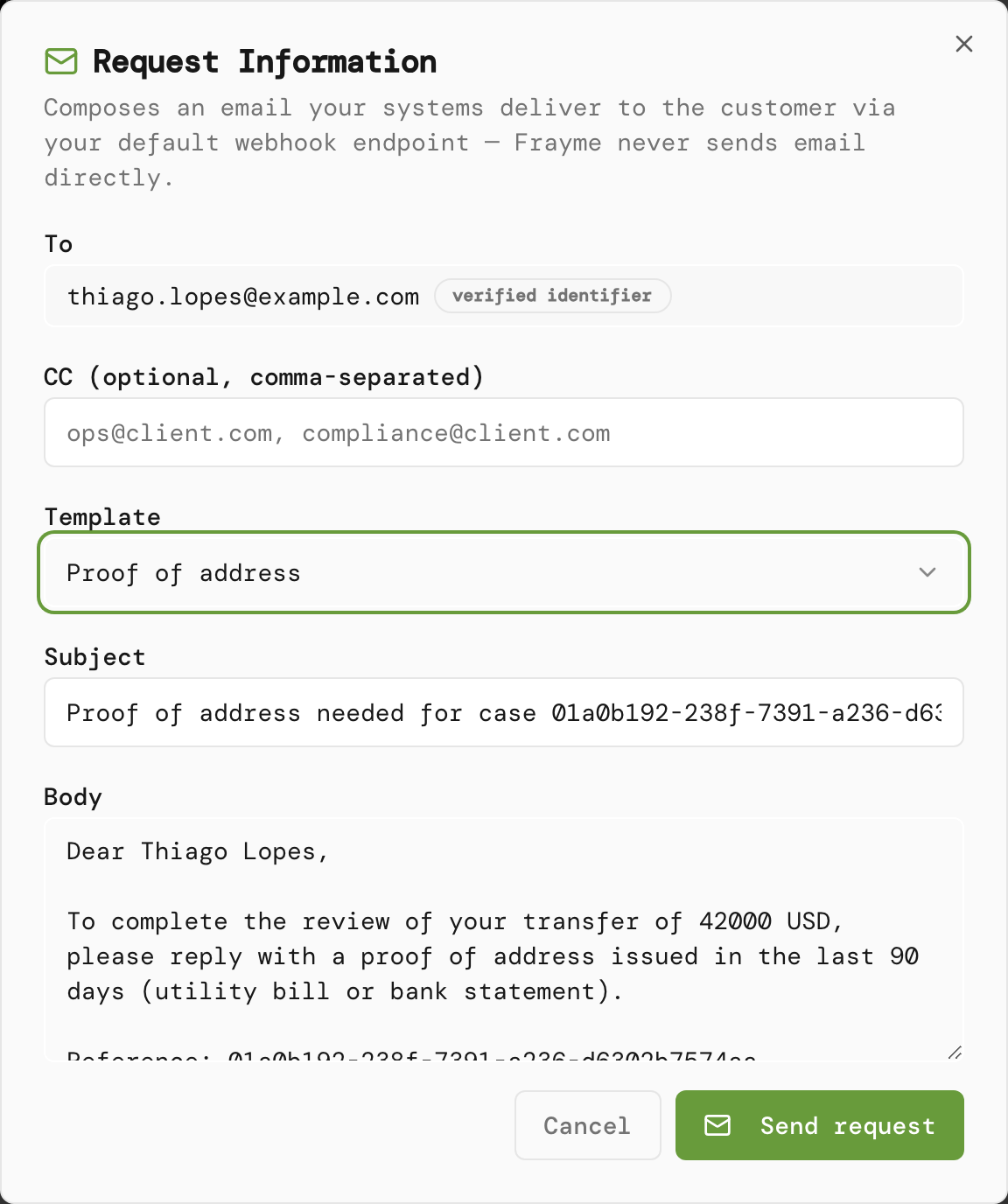
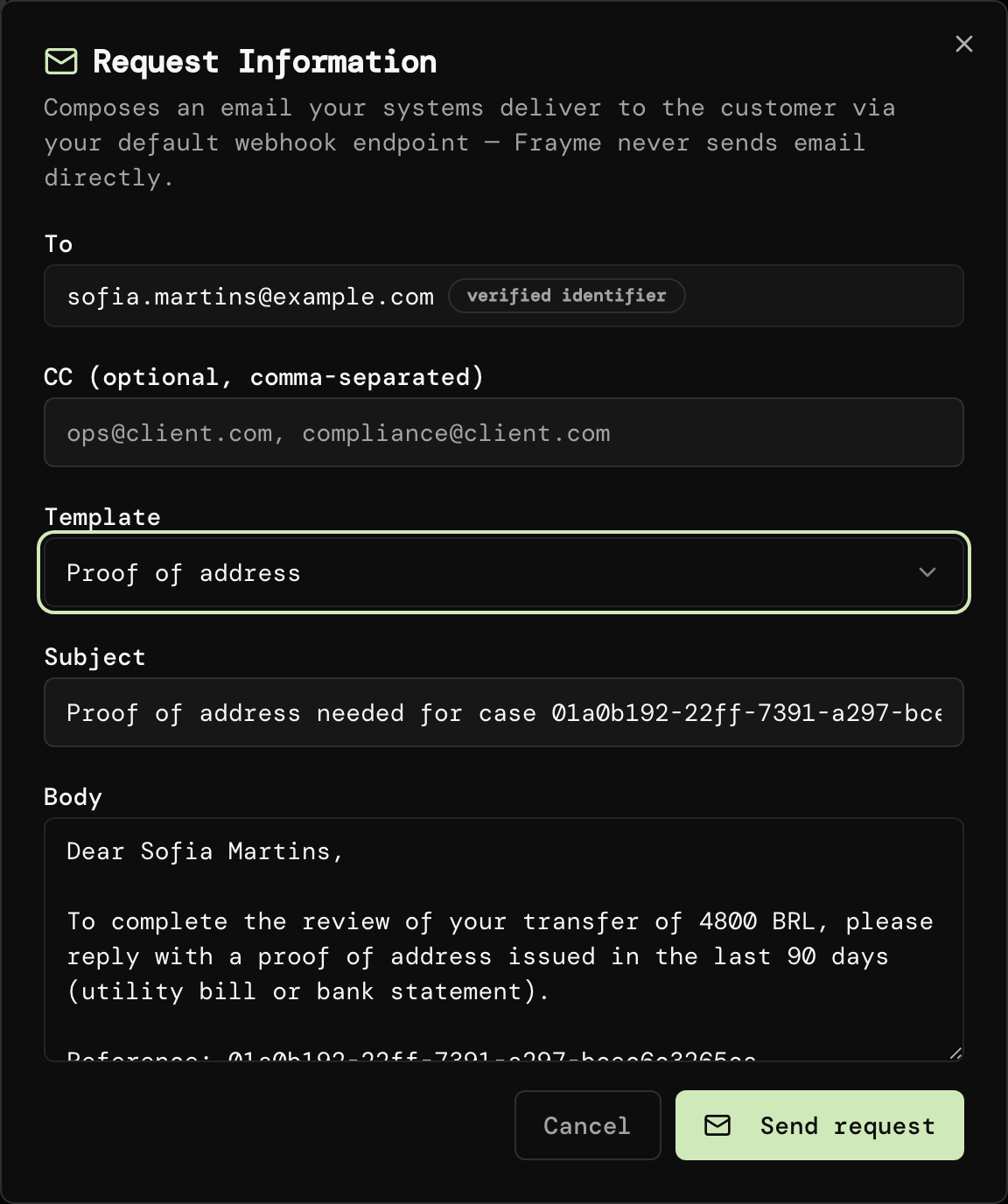
Subject and body filled from the template.
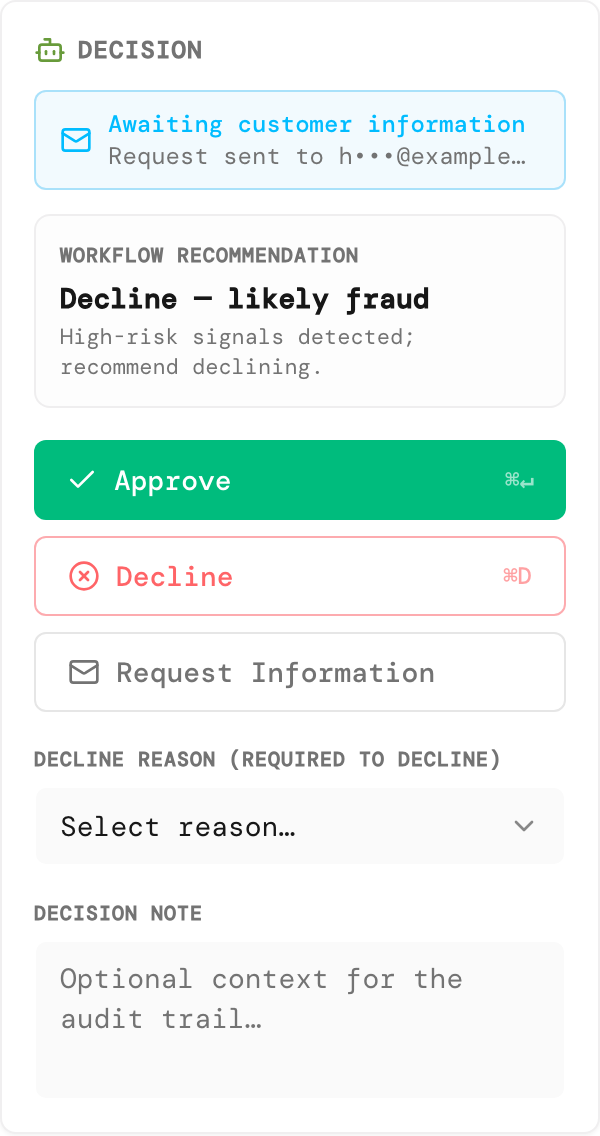
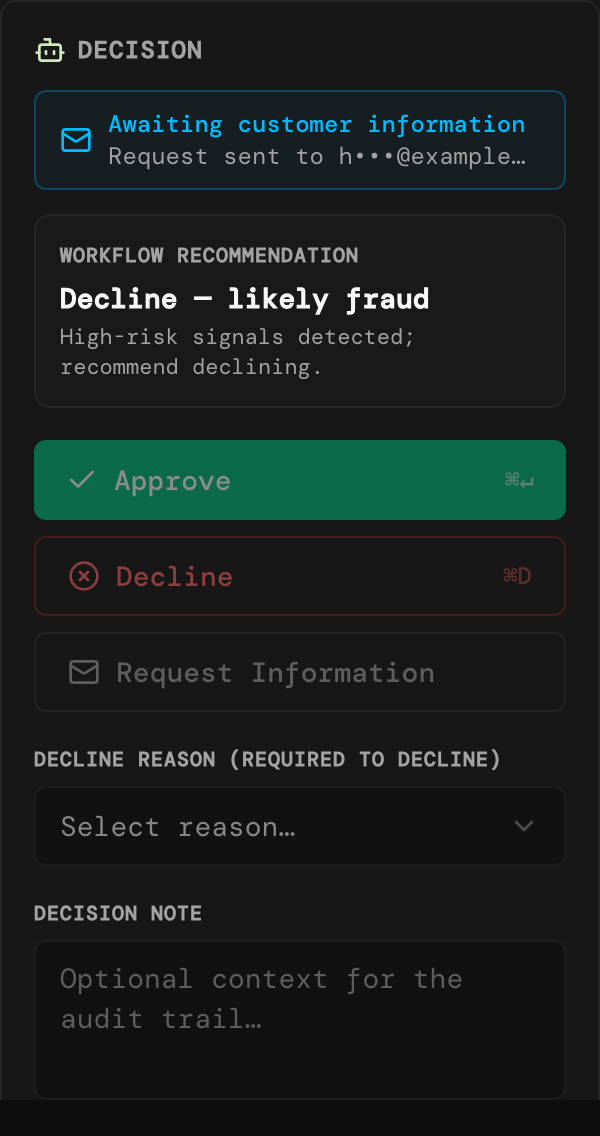
The case waits for the customer.
3 · When the answer comes back
a) Through your systems. If your systems collect the reply, they send it to Frayme withPOST /cases/{caseId}/rfi/{rfiId}/response. The Decision card changes to Information request answered, and each answer appears under Evidence, marked RFI. Your endpoint receives a case.rfi_answered webhook.
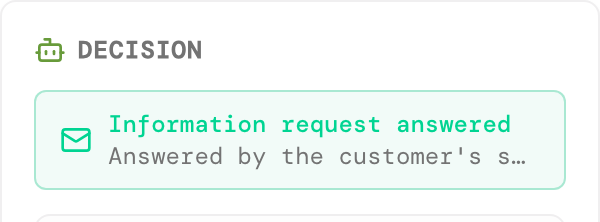
Answered by the customer's systems.
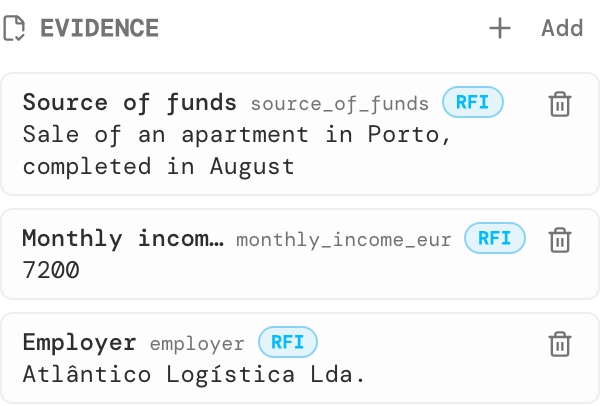
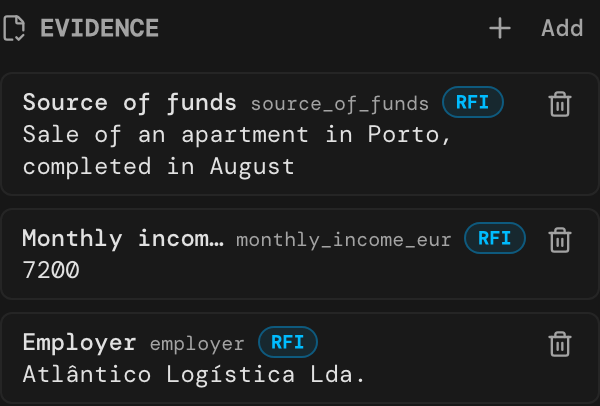
Each answer is evidence on the case.
-
Open Evidence. It sits in the decision column, below the Audit checklist and This party’s other cases, above Notes. Click + Add.
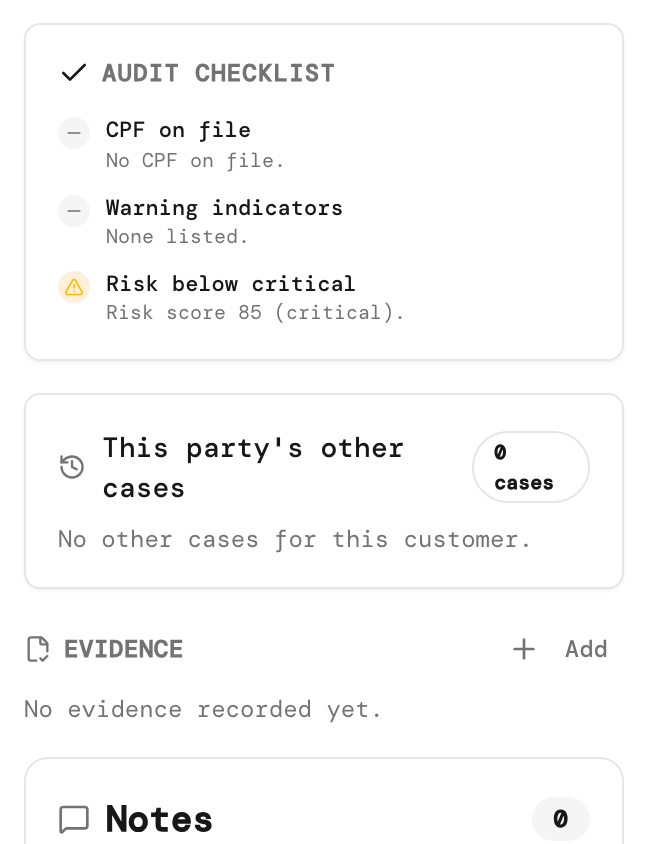
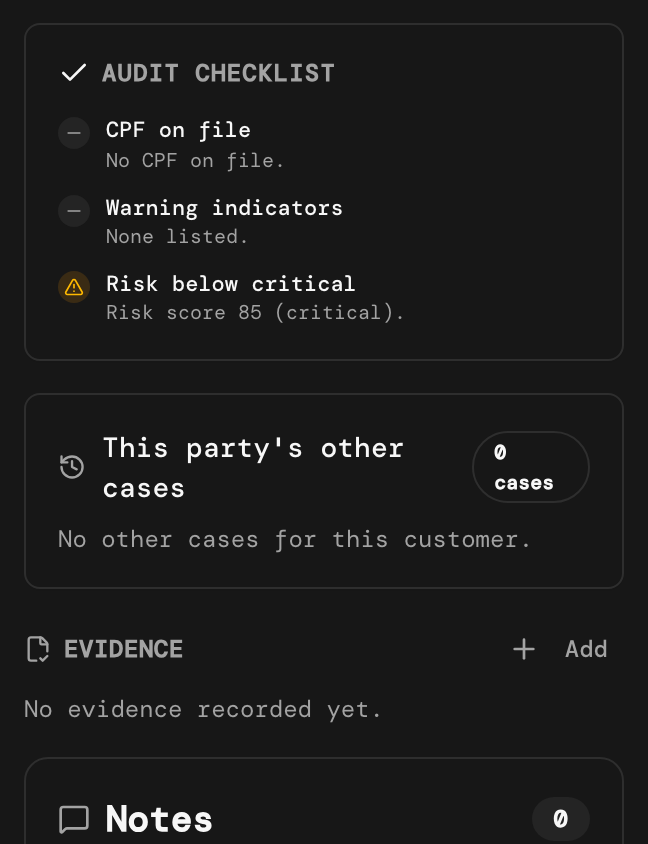
Where Evidence sits.
-
Fill in the dialog. In Add evidence:
- Under Fields, give each item an Evidence name, such as Proof of address, and its Answer. Click + Add field for more. Workflow rules read each answer by a key made from its name: lowercase, without accents, other characters replaced by
_. - Under Documents, click Choose files to attach PDF, JPEG or PNG files, up to 20 MB each and ten per submission, each with an optional label.
- Tick This answers the open information request. It closes the request for good; a follow-up needs a new request. Leave it unticked to record something the customer sent without closing the request.
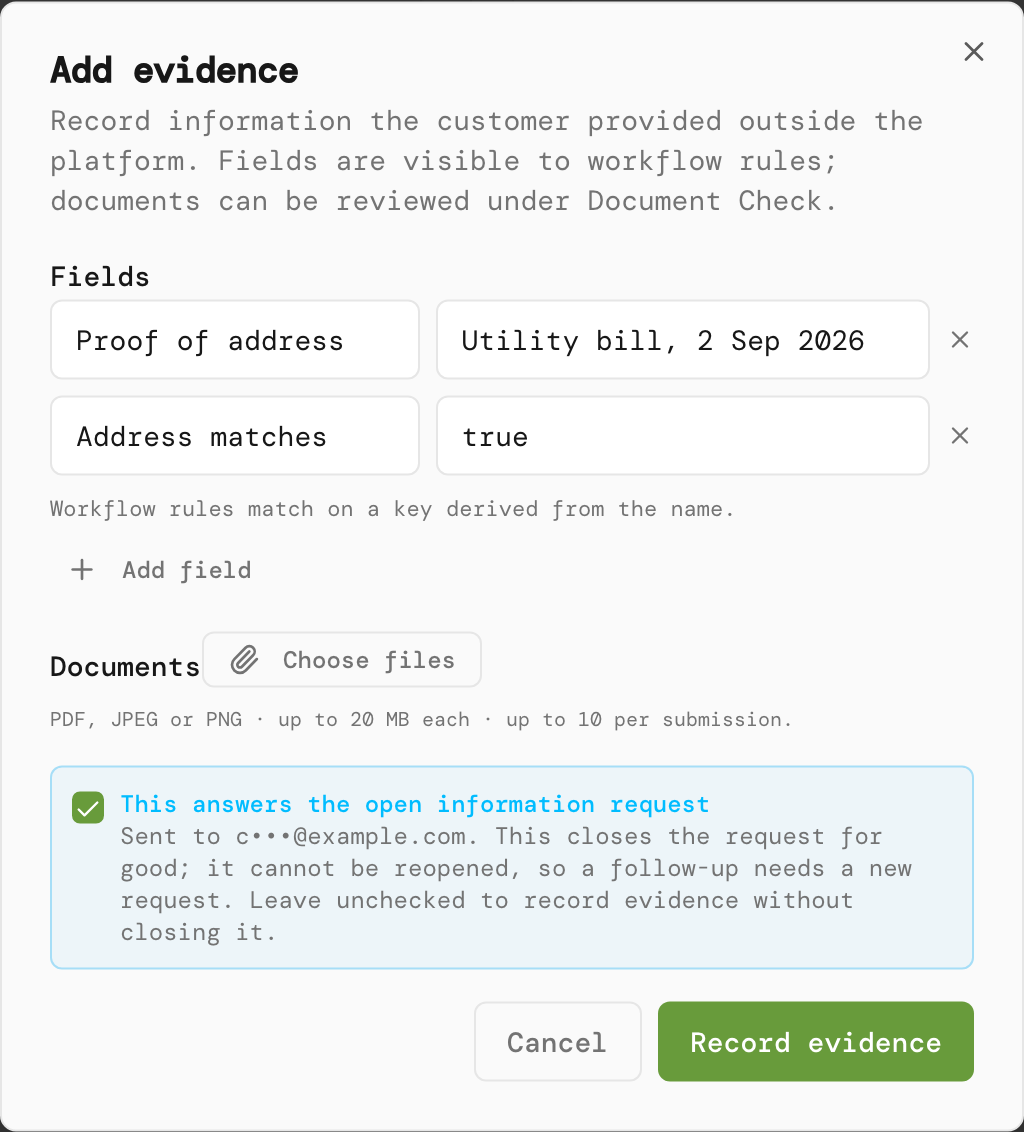
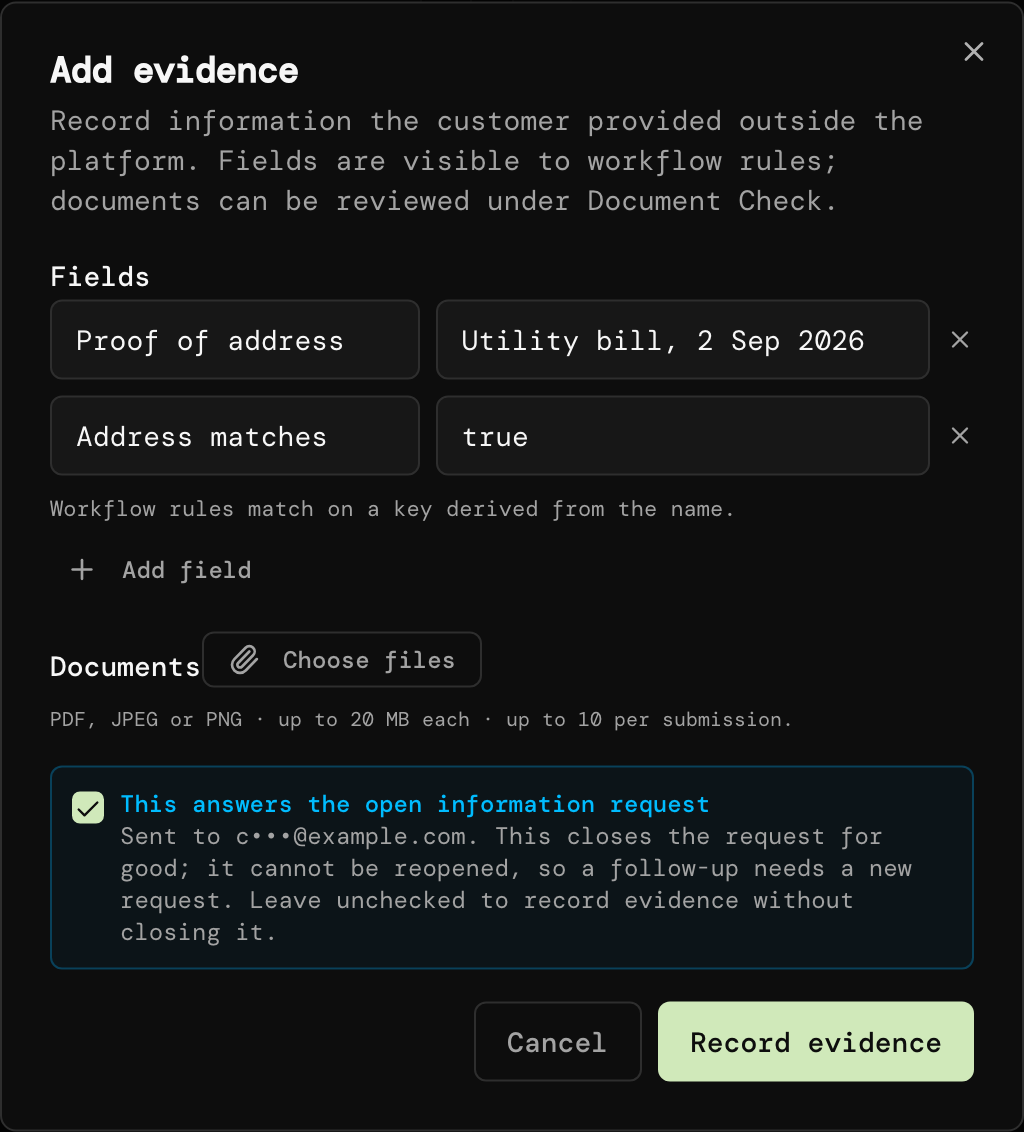
Name each item, give the answer, and tick that it answers the request.
- Under Fields, give each item an Evidence name, such as Proof of address, and its Answer. Click + Add field for more. Workflow rules read each answer by a key made from its name: lowercase, without accents, other characters replaced by
-
Click Record evidence. The answers appear under Evidence, marked Analyst, and attached documents appear in Document Check, marked Provided by: Analyst. If you ticked the box, the Decision card changes to Information request answered, recorded by an analyst; otherwise the request stays open.
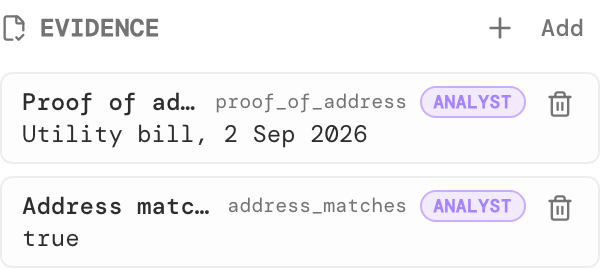
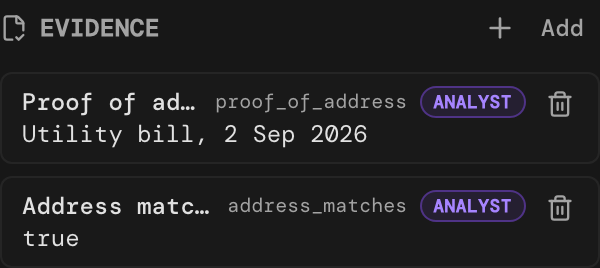
Recorded by an analyst.
Automate it
A workflow can send the request itself with the Send RFI node, from the Integration group of the palette. Pick a Template, turn on Wait for the response, and set a Response deadline (days).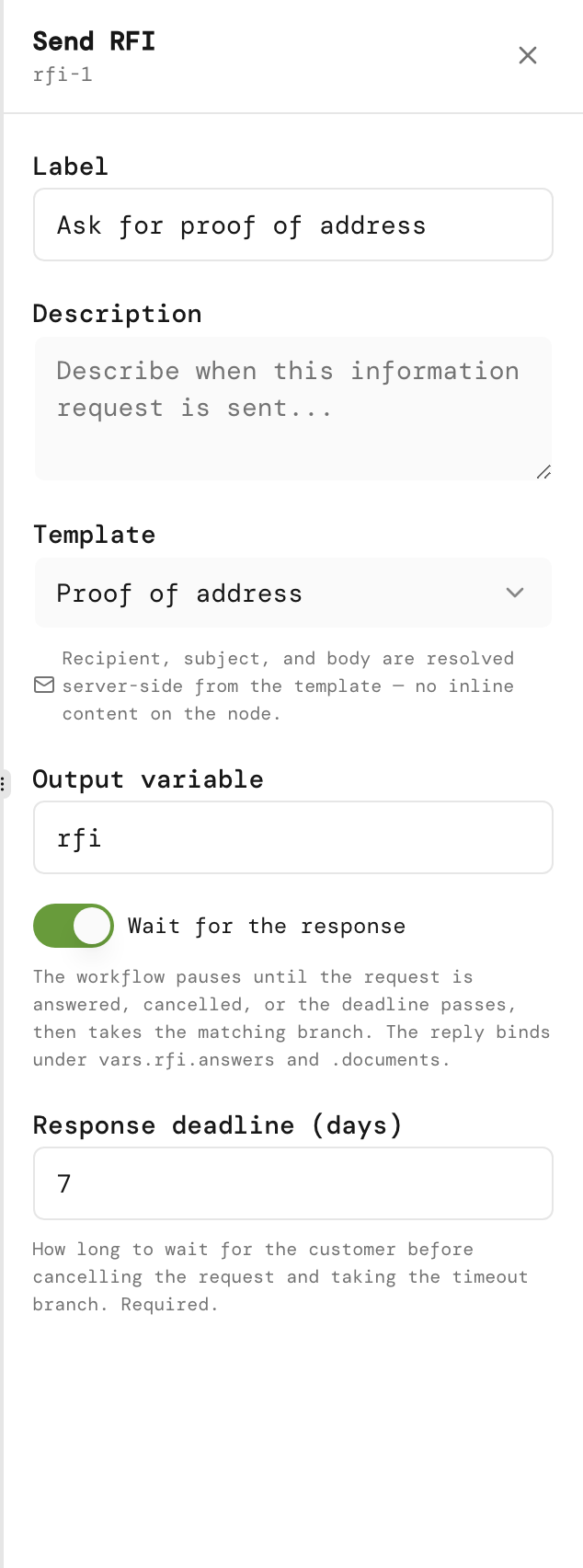
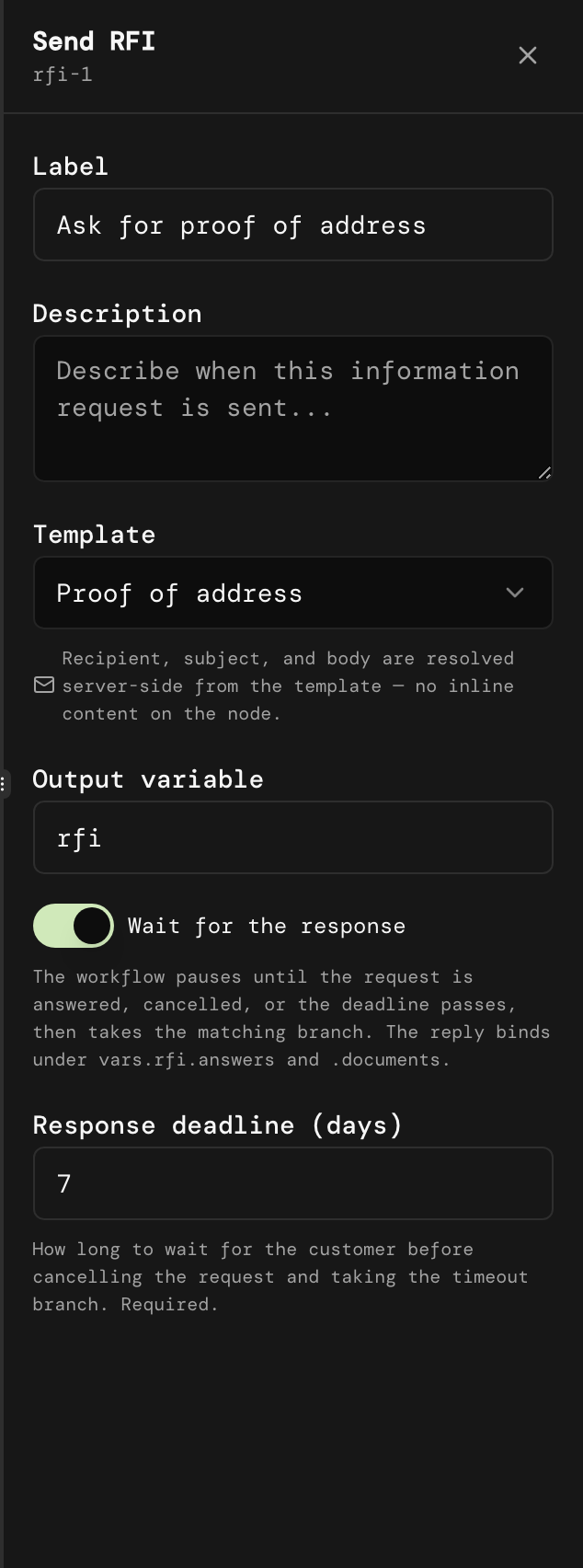
Wait for the response, with a deadline.
vars.rfi.answers.<key>, where rfi is the node’s Output variable. When each branch fires, and the deadline’s limits, are in the Send RFI reference.
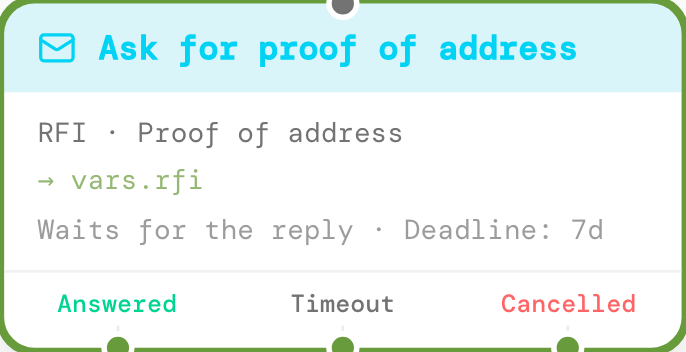
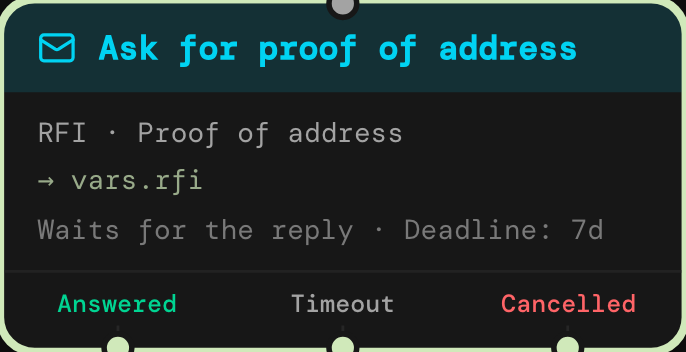
Answered, Timeout and Cancelled.
Limits
- A case has at most one open request. Reopening Request Information shows A request has already been sent; Cancel request closes it so you can send another. Cancelling sends a waiting workflow down Cancelled.
- A request is answered once. There is no amending an answer or reopening a request.
- When the case is decided, an open request is cancelled without a webhook of its own; your systems receive
case.decided. - Evidence reaches workflow rules only when it answers a request a Send RFI node is waiting on.
- Removing evidence asks for one of five reasons and is allowed on decided cases too. It hides the item and records Evidence removed on the timeline, but it does not revoke access: a removed document stays retrievable by anyone in your tenant with
cases:read. Removing evidence never changes the decision.